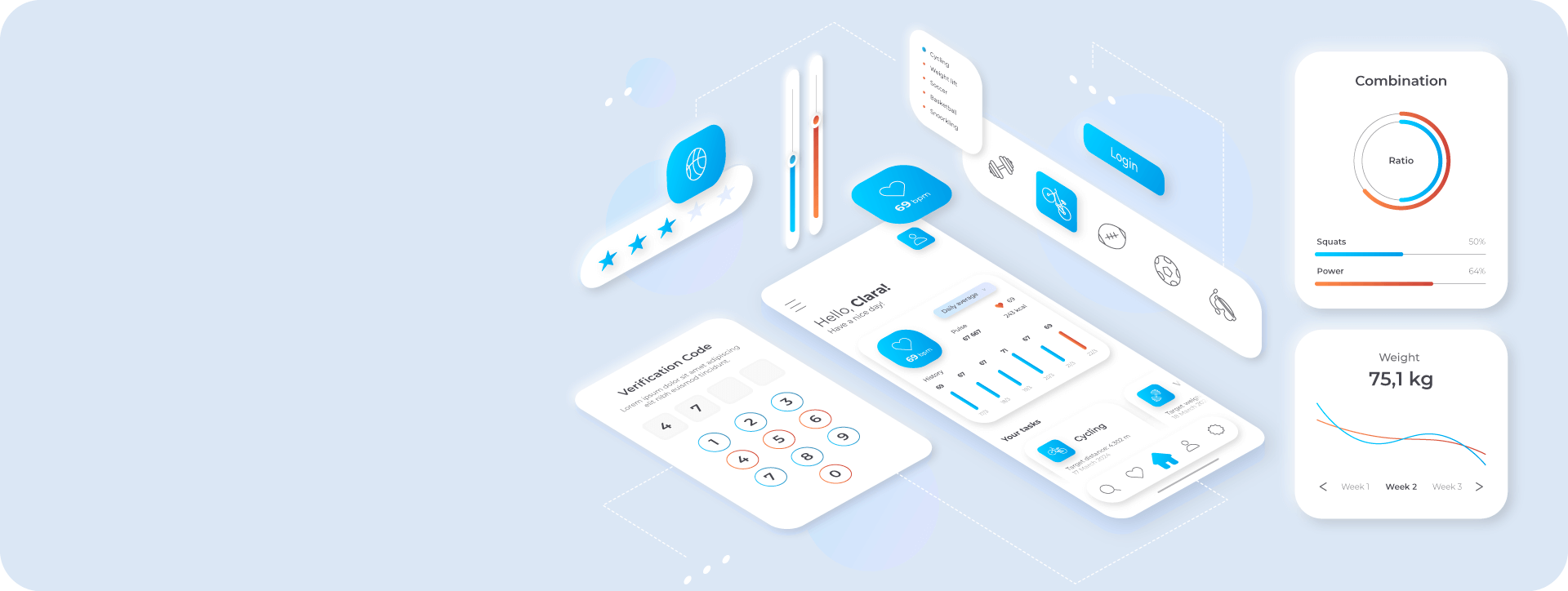
Prototype Design
If one image speaks volumes, a prototype says even more.
Prototype design usually follows several stages, each turning ideas into tangible forms for testing and validating product concepts. Below is the core prototype design workflow.



① Requirements Discovery & Analysis
>>
⠿ Understand needs, define features, gather insights
The first step of prototype design is requirement gathering and analysis. Designers work closely with stakeholders to define product goals, user needs, business requirements, and design scope. This stage clarifies the core functions and interactions the prototype should present, identifying key pages and elements such as the homepage, login page, or core feature areas. By analyzing user research, competitor products, and market trends, a solid foundation for design direction is established.
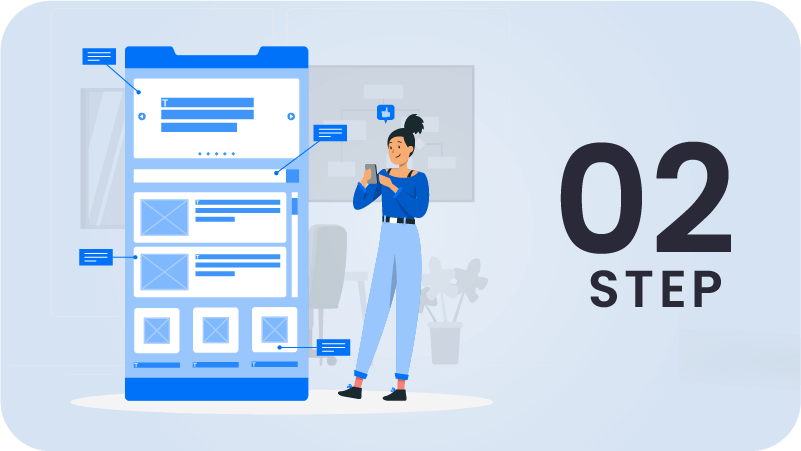
② Ideation & Low-Fidelity Prototyping >>
⠿ Sketching & Ideation ⠿ Low-Fidelity Prototypes ⠿ User Flow Design
Next comes ideation and low-fidelity prototyping. At this stage, designers develop multiple design options based on requirements and present them through sketches or flow diagrams. Low-fidelity prototypes are usually created with simple tools such as hand sketches, Balsamiq, or whiteboards, focusing on structure and basic flows rather than visual details. User interaction flows are also outlined to simulate how users move between different pages.

③ High-Fidelity Prototype Design >>
⠿ Tool Selection ⠿ High-Fidelity Prototyping ⠿ Interaction & Motion Design
As the design progresses, high-fidelity prototyping becomes the focus. Designers select suitable tools such as ProtopPie, Figma, Sketch, or Adobe XD to elevate low-fidelity prototypes into high-fidelity versions with complete visuals and interaction details. This includes page layouts, color schemes, icon design, and button styles. Animations are also added to page transitions and interactions, helping users better understand how the product works. A prototype preview is shown below (desktop view recommended).
④ User Testing & Feedback >>
⠿ Conduct Usability Testing ⠿ Analyze Feedback ⠿ Refine the Design
After the prototype is completed, user testing and feedback become essential. Designers provide high-fidelity prototypes to target users, observe how they complete specific tasks, and collect relevant data. Based on test results, usability issues such as unclear navigation or inefficient flows are identified and refined, ensuring the design better meets user needs.

⑤ Iteration & Optimization >>
⠿ Continuous Improvement ⠿ Detail Refinement
After testing is completed, the design enters the iteration and optimization phase. Designers continuously refine the prototype based on repeated feedback, with each iteration focusing on detail refinement to achieve an optimal user experience. Visual elements and interaction details are further polished to ensure the design performs reliably across different scenarios.

⑥ Design Handoff & Development Support >>
⠿ Developer Collaboration ⠿ Technical Review & Validation
Finally, the prototype design enters the design handoff and development support phase. Designers deliver the prototype to the development team with clear specifications, assets, and guidance to ensure accurate implementation of the design intent. Throughout development, designers remain involved in technical reviews to keep the final product aligned with the prototype, making necessary adjustments to enable a seamless transition from design to development. A prototype development handoff preview is shown below (desktop view recommended).
A Simple Comparison of Four Prototype Tools
Complex interactions and motion prototypes: ProtoPie is the best fit. Team collaboration and simple prototyping: Figma is the top choice. Simple prototyping and vector design: Sketch suits Mac users well. Quick basic animations and cross-platform use: Adobe XD is a solid option.
| Tools |  | |  | |
| Features | ProtoPie ⭐ ⭐ ⭐ ⭐ ⭐ | Figma ⭐ ⭐ ⭐ | Sketch ⭐ ⭐ | Adobe XD ⭐ ⭐ |
| Interaction Capability | Highly customizable, ideal for complex interactions and animations | Basic interaction design with simpler animations | Basic interaction design with simpler animations | Supports transition effects with basic animation design |
| Collaboration | Primarily for individual design, with limited collaboration support | Real-time collaboration with multi-user simultaneous design | Supports team collaboration without real-time co-editing | Limited team collaboration, no real-time synchronization |
| Learning Curve | Steeper learning curve, requires training | Easy to learn, suitable for beginners | Simple and intuitive, easy to pick up quickly | Easy to use, suitable for beginners |
| Cross-Platform Support | Cross-Platform | Cross-platform (web-based) | Mac-only | Cross-platform (Windows and Mac) |
| Animation Design | Supports complex animations and interactions | Supports basic transitions and animations | Basic animation design, relatively simple | Supports basic animation transitions |
Comparison of All Prototyping Tools
Easy to use |
Best Use Cases for Prototyping |
High Fidelity |
||||
|---|---|---|---|---|---|---|
 |
 |
 |
 |
 |
 |
|
| 3.99 | 3.87 | – | 2023 Design Tools Survey Ratings |
3.88 | 3.99 | – |
Conditional Interactions |
||||||
Local Device Sensors Voice, camera, dynamic text input, etc. |
||||||
Multiple devices and displays Smartwatches, TVs, Arduino, tablets, and more |
||||||
Integration with external data and APIs |
||||||
| Sketch | Sketch、Figma | Adobe XD | Integration with UI design tools Figma、Sketch、Adobe XD |
Sketch、Figma | Sketch、Figma | – |
Secure shareable links Sharing with access level control |
||||||
Interaction Switching Interaction handoff to developers |
||||||
User testing features |
||||||
ProtoPie Prototype Showcase
ProtoPie Development Handoff
Six Motion Effects in Prototypes
We explain how we use them in two dedicated articles: Prototyping and Motion Design.
Motion brings designs to life, helping products stand out. It communicates system states, improves navigation transitions, and provides visual feedback—when used thoughtfully, it significantly enhances user experience and usability.
01
Lottie Animations
Lottie animations are lightweight, JSON-based animations powered by JavaScript and are one of the most effective animation solutions today. They offer small file sizes for faster loading, developer-friendly control over animation parameters, resolution-independent vector quality, and cross-platform compatibility across devices and environments.
02
SVGA Animations
SVGA is a high-performance animation format compatible with iOS, Android, Flutter, and the Web. It delivers smooth animations with efficient performance and consistent visual quality, making it ideal for both mobile and web applications.
03
High-Fidelity Interactive Prototypes
“So real, it feels finished.” By validating high-fidelity prototypes with clients early and gathering in-depth feedback, we confirm designs before handoff to development. This significantly reduces wasted time and resources, improves design accuracy, and ensures the final product meets real needs—avoiding late-stage changes and rework.
04
Motion Video
Motion video quickly captures attention, delivers brand messages clearly, and strengthens recall. It enhances product perception while making UI/UX more engaging—helping users understand interfaces intuitively and improving overall experience. With its flexibility and visual impact, motion has become a key element in modern design.
05
Animated GIFs
Photoshop is suitable for simple animations, while more complex motion is better handled with Adobe Animate. For highly complex animations, video formats are recommended, as GIF files can become large and negatively impact performance.
06
HTML5 Canvas
Many overlooked Adobe Animate after the decline of Flash, unaware that it has evolved into a key tool for creating H5 animations. Over time, Animate is also moving toward supporting Lottie exports. While challenges remain, it is steadily becoming an important tool in modern motion design

